


Procedure of Taking Backup of MS SQL Database
In this blog, I have discussed the process of taking backup of MS SQL Database, the types of backups, and steps to take the backup.
Introduction
MSSQL is a relational database management system (RDBMS) built for the basic function of storing retrieving data as required by other applications. It can be run either on the same computer or on another across a network. It is a highly scalable product that can be run on anything from a single laptop to a network of high-powered cloud servers, and anything in between.
Backup Process
SQL Server allows three basic types of Microsoft SQL Server backup:
- Full backup
- Differential backup
- Transaction log backup
Now let’s look at different types of backups :
- Full Backup
A backup containing all the data from the database in question is known as full backup. Such as file sets and file groups, as well as logs to ensure data recovery. These backups create a complete backup of your database as well as part of the transaction log, so the database can be recovered.
- Differential Backup
A differential database backup is based on the most recent, previous full backup. **A differential database backup only captures the data that has changed since the last full backup. A previous full backup is needed if you want to restore a differential backup.**
- Transaction log backup
Backup is taken of transaction logs known as transaction log backup.
It includes all log entries that were absent in the previous transaction log backup (available in the full restore model only).
Here we will see the steps of taking a Full Backup of MS SQL.
DB Backup Process
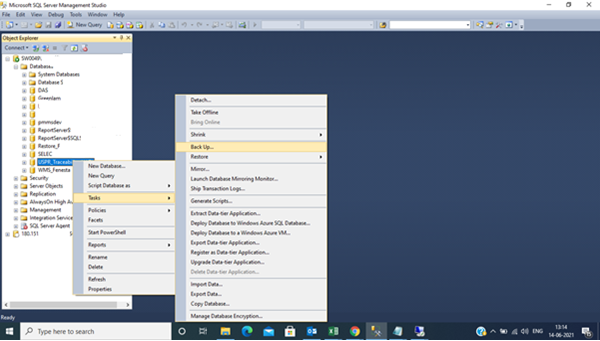
Select the database which you want to take the backup of and click on the right, you will see a screen pop as shown in the following snapshot. Then Go to the task and select ‘backup.’
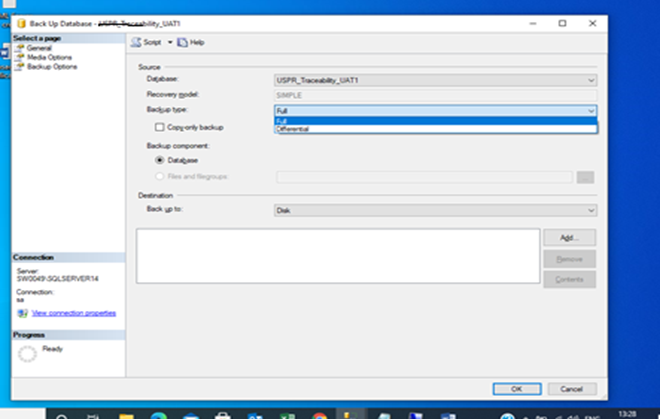
Step 2. Select backup type (Full\diff\log) and make sure to check destination path which is where the backup file will be created.
Step 3. Go to Backup option & and select the compress backup if required.
Step 3. Go to Backup option & and select the compress backup if required.
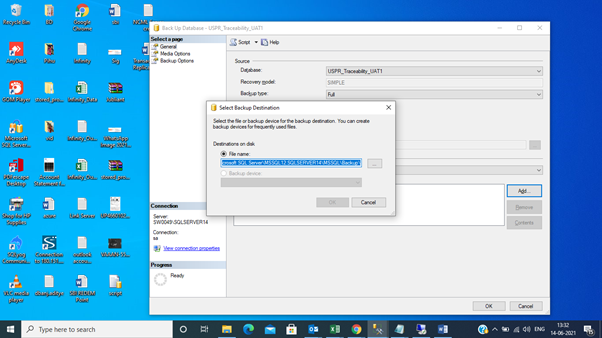
Step 4. Go to add button and select the path where you want to keep the backup file. Make sure the backup location is accessible.
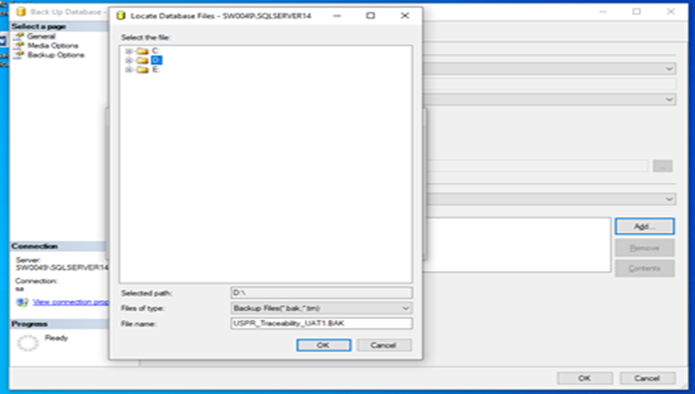
Step 5. Select the path and type of the backup file name with .BAK and click ok.
Extension of Backup:
- For Full backup (.BAK)
- For Transaction Log (.trn)
- For Differential (.dif)
- For File & File group (.fil)
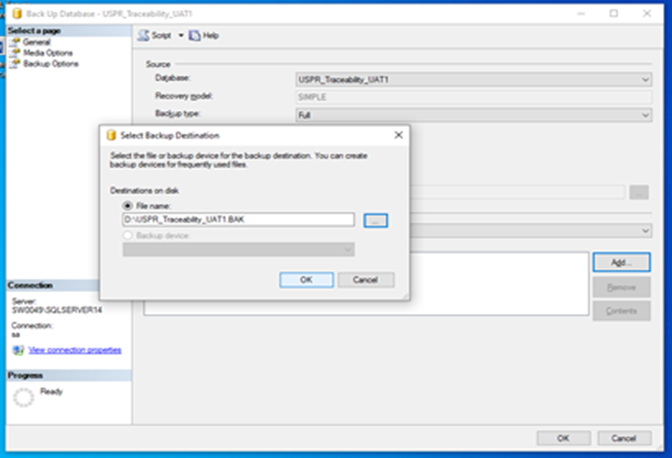
Step 6. Go to Ok button.
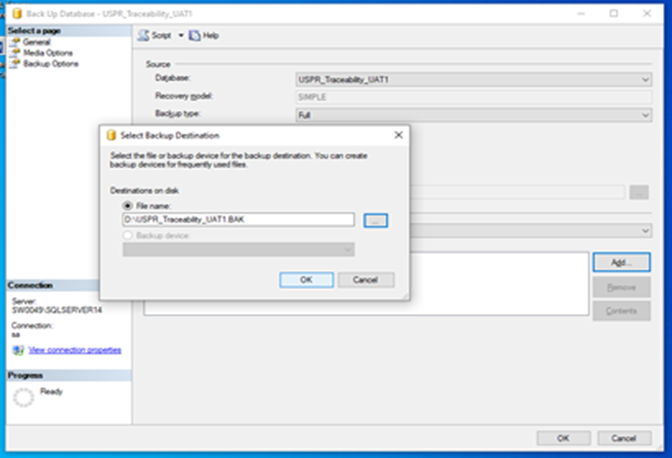
Step 7. Go to OK button then again OK
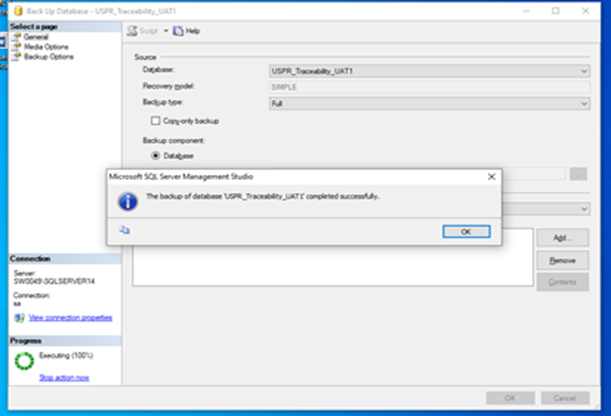
Step 8. Backup has been completed and click ok again.
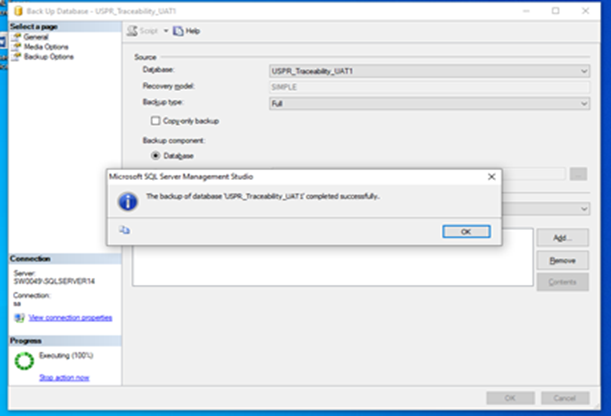
Step 9. Check the Backup file where you keep the backup
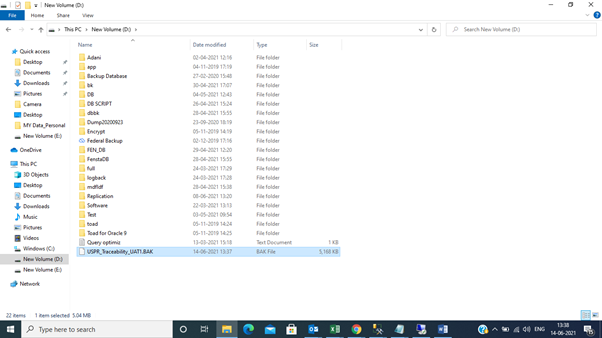
If your database size is big, you will need to combine full, differential and transaction log backups. If your database is big and it does not change too much, a differential backup will take less space than a full backup and you will save a lot of space.
Do not store your backup on the same drive as the database. If possible, try to store your backup on another server or even better on another physical place.
CONCLUSION
Database backups are vital for recovery in any disaster scenario. You should plan a proper backup policy, and validate the restoration plan as per the criticality.
Explore Related Articles

Design a Connected Healthcare Cloud for Epic, Data and AI
Explore how a connected healthcare cloud can help you bring Epic, data, analytics and AI together while keeping the environment
Read article

Right Workload, Right Place for Regulated Industries
Strategic workload placement helps regulated organizations maintain control, demonstrate resilience and govern AI in production.
Read article

Governing AI Agents Starts With the Infrastructure Beneath Them
Explore the identity, access, policy and operational controls that help organizations deploy AI agents safely across critical infrastructure.
Read article

The Cyberattacks That Never Cross Your Firewall
Discover how Rackspace Managed Digital Risk Monitoring helps identify threats beyond your network, using human-led intelligence to assess risks and
Read article